Debugging lesson: fixing Material UI autocomplete search
Struggling with inaccurate search results in Material UI’s Autocomplete component? This post breaks down a subtle but impactful bug developers often overlook—and shows how a small change in the renderOptions function can make a big difference. Learn how attention to detail can save you hours of debugging.


Did you know that developers spend more than 75% of their time debugging issues? That’s more than 1500 hours per year. While many problems can lead developers down frustrating rabbit holes, fixing something that should only take a few minutes shouldn’t be one of them, especially when the solution is right in front of us. Often, it just takes a bit more observation. And that’s exactly the kind of lesson fixing issues teaches us—Identifying the smallest details in your code can make the biggest differences.
When it comes to user experience, autocomplete is one of those small but essential features that users rely on every day. It saves time, reduces friction, and feels seamless when it works. But as developers know, implementing it correctly isn’t always straightforward.
In this blog post, we’ll explore a subtle but critical fix for a common autocomplete issue in Material UI. It’s a minor detail—easy to miss—but overlooking it can cost hours of your time. Let’s start by looking at how autocomplete works in Material UI and where things can go wrong.
How does auto-complete work in Material UI?
Material UI (MUI) is, essentially, a library that allows users to import and utilise different components to create a user interface (UI) in React applications. It is an open-source project that features React components that implement Google’s Material Design. This saves a significant amount of time since you do not need to write everything from scratch.
Autocomplete is a normal text input enhanced by a panel of suggested options. The autocomplete widget is useful for setting the value of a single-line textbox in one of two types of scenarios:
- The value for the textbox must be chosen from a predefined set of allowed values such as a location field must contain a valid location name, like combo box.
- The textbox may contain any arbitrary value, but it is advantageous to suggest possible values to the user, such as a search field that suggests similar or previous searches to save the user’s time, like free solo.
This is meant to be an improved version of the “react-select” and “downshift” packages.
Inaccurate search results
While using the MUI Autocomplete component – when you type in a string, the search results of the options that is returned are, at times, different than what was actually input into the search textbox. This is a common issue that developers face with autocomplete searches.
Here’s the MUI autocomplete setup that we generally use:

Note that the implementation for the renderOptions function that we had was:

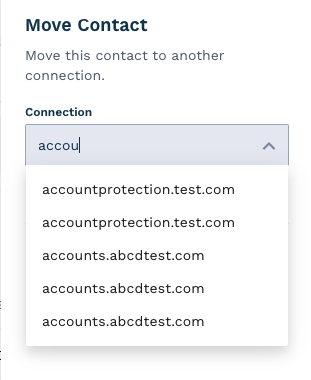
The actual string that was needed to be searched, and the results weren’t matching. Take a look at a couple of examples below:


Ready to learn more?
Discover how Sage’s cloud-native solutions can help you navigate financial uncertainty with confidence.

The autocomplete coding solution
It took trial and error to provide a proper resolution to the issue beginning with multiple trials, attempting all of the possible permutations and combinations of different methods/functions/attributes including “inputValue,” “isOptionEqualToValue,” and “filterOptions” inside the autocomplete module.
Ultimately, by keenly observing this exception thrown on the console, our skilled developers discovered the solution.

Upon further reading and analysing it was discovered that the renderOptions function by default takes the object first key as the keys to the options (aka search). To correct this, we now provide the renderOptions function with unique identifiers as keys.
This is how the updated function looks like:

And upon searching the same strings, you will get the expected outputs:

As the saying goes, “a stitch in time saves nine,” and that couldn’t be more true for subtle bugs like this one. Careful attention to detail often leads to quicker, more efficient solutions. Here are some key takeaways from this experience:
- Autocomplete will take the first object key: value as the default key for the options.
- The solution is often just around the corner—it only takes a moment to step back and re-examine the variables at play.
- While it might feel like a lot of time was wasted in hindsight, these moments are valuable learning experiences. They deepen your understanding and leave you better equipped for future challenge.
Subscribe to our Sage Advice Newsletter
Get our latest business advice delivered directly to your inbox.